Everything to Know Before Installing Facebook on a Huawei Phone
Switching to a Huawei phone does not mean leaving Facebook behind. The platform — with its News Feed, Marketplace listings, Groups, Reels, and Messenger chats — runs on Huawei devices today, and getting it there takes only a few minutes. What follows is a practical walkthrough of the whole journey: where the app comes from, what GBox does, what to expect at first launch, and how to sort out permissions, notifications, and updates afterwards. The technical details follow the official guide for huawei philippines facebook published on the HUAWEI Community, so nothing here is guesswork.
Is the Setup Trustworthy?
The two pieces that matter are both official. AppGallery is Huawei’s own app store, pre-installed on every Huawei smartphone, and GBox is a globally recognized app available through it that has undergone extensive testing, rigorous security audits, and verification. Users may rest assured that installing and using GBox is completely secure. Its integration with AppGallery reflects the company’s dedication to providing a safe and convenient way to access well-known apps on devices without Google Services. Far from being a risky workaround, this is the intended distribution environment for apps like Facebook on Huawei handsets.
The Installation Routine, Step by Step
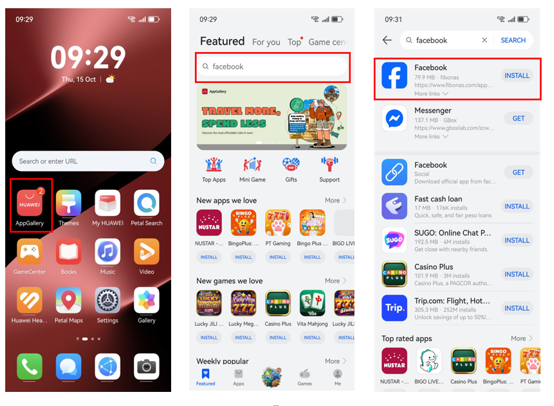
Open AppGallery from its home screen icon and search for “Facebook” at the top of the page. Tap the search result to reach the app’s landing page, where the install option is visible. On some devices and in some regions the direct listing appears, and installation proceeds immediately. Where it does not, installing Facebook takes you to a page where you can download GBox — tap “Install” when asked, and the download will start on its own. These steps mirror the huawei philippines facebook guide on the HUAWEI Community, so you can follow it side by side if you prefer to see each screen before you touch the phone. Once completed, GBox works in the background to support Facebook and other apps requiring Google Services. This is also what makes the experience economical: rather than fetching extra software for each app individually, the one-time GBox setup removes the restrictions imposed by the absence of Google Services and opens the door to popular applications across the board.
See also: 7 Life-Changing Reasons to Start Orthodontic Treatment as an Adult
Opening the App for the First Time
With installation finished, the Facebook and GBox icons sit on the home screen. The first tap on the Facebook icon asks for account sign-in, which is required upon opening — a normal step, since authentication belongs to Facebook itself rather than to the phone. After logging in, the app behaves as it does anywhere else: the News Feed scrolls, Marketplace listings load, Groups open, Reels play, and Messenger conversations continue without a hitch. Thanks to GBox working quietly underneath, you will not even notice the difference from other devices.
Getting Notifications, Permissions, and Updates Right
Three settings cover almost every issue a user is likely to meet. If the app seems to lack access to something it needs, enable all permissions: from Settings, go to Apps & services, tap Apps, search Facebook from the search bar, select Facebook, and allow all permissions. If alerts stop arriving, go to Settings, open Notifications & status bar, search Facebook, and allow notifications. If the app itself needs refreshing, go to Huawei AppGallery, click Me, then App updates, and either update Facebook manually or update all apps at once — a prompt will show, and you can check “Don’t ask again” and select UPDATE. Keeping GBox updated through the same page matters too, since compatibility fixes arrive there as they become available.
Help When You Need It
In the future, when you want any new app, always check AppGallery first — it is the safest and fastest way to get apps on your Huawei device, no extra steps needed. For everything else, the HUAWEI Community is the place to go: it hosts step-by-step tutorials (including video guides) covering the huawei philippines facebook installation and its troubleshooting paths, and Huawei customer support is available for questions that fall outside the ordinary. Install the app once, apply the three settings above, and the platform’s full routine — feed, Marketplace, Groups, Reels, and Messenger — stays reliably in your pocket.